Pentax PocketJet 3 Manuale Utente
Navigare online o scaricare Manuale Utente per Stampanti per fotografie Pentax PocketJet 3. Pentax PocketJet 3 User Manual Manuale Utente
- Pagina / 82
- Indice
- RISOLUZIONE PROBLEMI
- SEGNALIBRI
Valutato. / 5. Basato su recensioni clienti


- Printer User’s 1
- 205559-551A 2
- Contents 3
- Page iv 4
- Safety Information 5
- Page vi 6
- Printer Features 7
- Warranty Information 8
- Unpacking the Printer 9
- Connecting to an AC Outlet 10
- Connecting to a DC Supply 11
- Using the Operation Panel 12
- Indicator Lights 13
- Printing Solutions 15
- Driver Installation 16
- Configuration Utility 17
- Page 10 18
- Configuration Options 18
- Page 11 19
- Page 12 20
- Page 13 21
- Page 14 22
- Page 15 23
- Page 16 24
- Page 17 25
- Page 18 26
- Page 19 27
- Printer Commands 28
- Page 20 28
- Page 21 29
- Page 22 30
- Connecting to Your Computer 31
- Via Infrared (IrDA) 32
- Page 24 32
- Printing 33
- Turning the Printer OFF 34
- Page 26 34
- Density Modes 35
- 2-Ply Mode 35
- Form Feed Modes 35
- Page 27 35
- Windows CE 36
- Windows 2000/XP 36
- Cut Sheet Paper Usage 36
- Page 28 36
- Page 29 37
- Protecting the Printer 38
- Installing the Battery 39
- Page 32 40
- Removing the Battery 41
- Charging the Battery 42
- Tips on Using the Battery 42
- Inserting Paper 43
- Use Pentax Quality Paper 44
- Clearing a Paper Jam 45
- Page 38 46
- Cleaning the Print Head 47
- Page 40 48
- Cleaning the Platen Roller 49
- Page 42 50
- Page 43 51
- Page 44 52
- Chapter 5 - Reference 53
- Indicator Light Warnings 54
- Self-Test Feature 56
- Chapter 6 - Troubleshooting 57
- Paper Problems 58
- Printed Image Problems 58
- Pages Don’t Print 61
- Pages Are Partially Printed 61
- Windows CE-related Problems 62
- Specifications 63
- Interfaces 64
- Environmental 64
- Electrical 64
- Page 56 64
- Regulatory 65
- Page 57 65
- Page 58 66
- Page 59 67
- Page 60 68
- Page 61 69
- Page 62 70
- Page 63 71
- Page 64 72
- Page 66 74
- Supplies 75
- Page 68 76
- Page 69 77
- Page 71 79
- Page 72 80
- Page 73 81
- User’s Guide 82
Sommario
Pagina 1 - Printer User’s
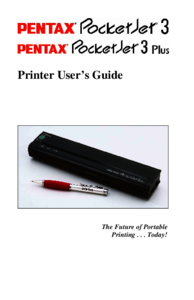
Printer User’s Guide The Future of Portable Printing . . . Today!
Pagina 2 - 205559-551A
Connecting to an AC Outlet Connect the printer to a nearby AC power outlet to run it on AC power or to charge the battery (see Charge the Battery, pa
Pagina 3 - Contents
Connecting to a DC Supply The PocketJet can be powered from its internal NiMH battery or from a vehicle DC supply. To install the battery, see page
Pagina 4 - Page iv
Using the Operation Panel The operation panel consists of the main switch and three indicator lights. See Figure 4. FIGURE 4. Operation panel Ma
Pagina 5 - Safety Information
Program Mode: After powering the unit on, press and hold for 2 seconds until the DATA LED turns red. Press and hold again for 6 seconds until the DA
Pagina 6 - Page vi
Notes: Page 6
Pagina 7 - Printer Features
Chapter 2 - Using the Printer Printing Solutions Pentax provides printing solutions for many different operating systems and device types. Device typ
Pagina 8 - Warranty Information
Driver Installation CAUTION: Please do NOT connect your PocketJet printer to your computer via the USB cable UNTIL you have performed the driver inst
Pagina 9 - Unpacking the Printer
for more information. Note that every driver can be installed manually if necessary. Browse the CD to locate the “Setup” or “Install” program for yo
Pagina 10 - Connecting to an AC Outlet
Using the Configuration Program: • Connect an external power source, or be sure that the battery is freshly charged. • Assure that the Printer Drive
Pagina 11 - Connecting to a DC Supply
Auto-On: When external power is applied to the printer, there are three possible actions that the printer may take.
Pagina 12 - Using the Operation Panel
Symbian OS is a trademark of Symbian Ltd. PALM and PALM OS are trademarks of Palm, Inc. PENTAX and PocketJet are registered trademarks of Pentax Imagi
Pagina 13 - Indicator Lights
Pre-Feed: When the printer is powered on and paper is found in the infeed area, the printer will normally advance t
Pagina 14
‘Fixed Page’ mode is typically appropriate. It assumes a known page length (based upon the ‘Form Length’ and/or ‘Paper Size’ settings). It advances
Pagina 15 - Printing Solutions
about 0.27” and 0.06”, respectively. Printable width is set to 8.16” with 0.17” margins on either side. ‘A4’ size assumes an 8.27 x 11.7” (210 x 297
Pagina 16 - Driver Installation
Left Margin: This setting can modify the left margin when the ‘Custom’ ‘Page Size’ is selected. You may choose to avoid any changes by s
Pagina 17 - Configuration Utility
Right Margin: This setting can modify the right margin when the ‘Custom’ ‘Page Size’ is selected. You may choose to avoid any changes
Pagina 18 - Configuration Options
Form Length: This command can be used to set the form length of a ‘Custom’ size page. You may specify the vertical print area in text lines as d
Pagina 19 - Page 11
Default Font: This command determines which of the two internal typefaces is the default when printing ASCII
Pagina 20 - Page 12
128 and 255 are received. Either the graphics characters or italic versions of the lower valued characters (32 to 127) are printed. CR-LF Mode:
Pagina 21 - Page 13
Printer Commands Test Page: You can print a test page using the Configuration Utility or you can print test pages using the Main Switch (see page 48)
Pagina 22 - Page 14
END OF PAGE Clean: Clicking on this button places the printer in “Cleaning Mode”. Refer to that maintenance procedure in this manual for further i
Pagina 23 - Page 15
Contents Safety Information...v Printer Features...
Pagina 24 - Page 16
File Menu: • Import – Load a configuration file that was saved previously using the Export feature. Note: You must then Save Config to set the printe
Pagina 25 - Page 17
Connecting to Your Computer There are two ways to connect your PocketJet to your computer, via USB cable and via Infrared (IrDA). Via USB Cable CAUTI
Pagina 26 - Page 18
location” and browse the Pentax Driver CD into the <CD Drive>:\<Printer>\Win9xME folder. C. Follow the on-screen instructions to complete
Pagina 27 - Page 19
Printing 1. Make sure that you have installed a charged battery, have connected the printer to an AC power outlet, or have a DC adapter plugged in. 2
Pagina 28 - Page 20
The green DATA indicator light blinks to indicate that the printer is receiving data from your computer. NOTE: If you have inserted paper into th
Pagina 29 - Page 21
Accessing Advanced Software Features through Windows These features can be accessed using the software dialog boxes and methods discussed below. For
Pagina 30 - Page 22
• End of Page Mode - the printer feeds paper until an “out-of-paper” condition is found, or a maximum of 14”. Use this with perforated paper. Wind
Pagina 31 - Connecting to Your Computer
Non-Perforated Roll Paper Usage To use roll paper, you must select from either fixed page length using “Fixed Page Mode” or variable page length using
Pagina 32 - Page 24
D. Multipage Documents with “tear off” for EACH page Note: This feature is only available with Win 9x/Me and has recently been added to the Win2k/XP d
Pagina 33 - Printing
Installing the Battery 1. Open the printer’s battery cover by pressing the cover latch. Push the cover away from the AC adapter receptacle. See Fig
Pagina 34 - Page 26
Chapter 3 Tips on Using Paper Inserting Paper...35 Use Pentax Quality
Pagina 35 - Page 27
4. Grasp the battery removal ribbon, which is attached to the inside of the battery compartment. See Figure 12. CAUTION: If you forget to hold on
Pagina 36 - Page 28
Removing the Battery 1. Open the printer’s battery cover by pressing the cover latch. Swing the cover open and remove it. 2. Pull out on the batter
Pagina 37 - Page 29
Charging the Battery Note: Batteries are shipped from the factory uncharged. Charging the Battery 1. Make sure the printer is connected to an AC p
Pagina 38 - Protecting the Printer
Chapter 3 - Tips on Using Paper Inserting Paper 1. Use both hands to hold the paper straight while you insert it into the printer’s paper input slot
Pagina 39 - Installing the Battery
See “Advanced Software Features:Form Feed Modes”, “Advanced Features: Non-Perforated Roll Paper Usage”, and “Advanced Features: Perforated Roll Paper
Pagina 40 - Page 32
Clearing a Paper Jam Method 1 Press and hold the green Main Power switch. The drive motor will start and move slowly for a few seconds, then move f
Pagina 41 - Removing the Battery
2. Gently pull the paper out of the printer. Pulling in either direction is acceptable. See Figure 16. FIGURE 16. Pulling jammed paper out of th
Pagina 42 - Tips on Using the Battery
Chapter 4 - Maintaining the Printer Cleaning the Print Head To maintain high print quality, clean the print head after 500 prints or whenever you de
Pagina 43 - Inserting Paper
FIGURE 17. Inserting the cleaning cloth CAUTION: Do not attempt to clean the print head with any material other than the cleaning cloth. The c
Pagina 44 - Use Pentax Quality Paper
Cleaning the Platen Roller Dirt and debris on the platen roller can make the roller feed paper into the printer at an angle, degrade the quality of t
Pagina 45 - Clearing a Paper Jam
Safety Information Use Recommendations • Because the printer uses a thermal printing method, it produces heat during operation. Be sure to place it
Pagina 46 - Page 38
FIGURE 18. Cleaning the platen roller. CAUTION: Do not attempt to clean the platen roller with any material other than the cleaning cloth. The
Pagina 47 - Cleaning the Print Head
Cleaning the Printer’s Exterior Should the outside of the printer become dirty, clean it using a soft cloth moistened with water. If necessary, add
Pagina 48 - Page 40
Notes: Page 44
Pagina 49 - Cleaning the Platen Roller
Chapter 5 - Reference Indicator Lights The indicator lights tell you about the current status of the printer. Indicator Light Table = Solid
Pagina 50 - Page 42
POWER DATA ERROR Flash data storage is complete Bad checksum of flash data No battery found when charging Time-Out when
Pagina 51 - Page 43
No Battery Found When Charging If this indication occurs immediately when attempting to charge the battery, the printer did not “see” a battery when
Pagina 52 - Page 44
Data Receive Error Data is being received but errors are causing the printer to request that it be re-transmitted. This will slow printing speed an
Pagina 53 - Chapter 5 - Reference
Chapter 6 - Troubleshooting Overview If you have difficulty getting your printer to work properly, first check to make sure you have done the followi
Pagina 54 - Indicator Light Warnings
Paper Problems The paper is jammed in the printer See page 37, “Clearing a Paper Jam.” Paper moves through the printer, but nothing appears on the
Pagina 55
The image is squashed and stretched in many places Make sure the release cover was not left open during printing. If it is open, close it completely.
Pagina 56 - Self-Test Feature
Unplug AC Cable when Printer is Not in Use Always unplug the AC cable from the AC power outlet when you stop using the printer or finish charging the
Pagina 57 - Chapter 6 - Troubleshooting
The top margin is incorrect Make sure the correct margins have been set in the configuration utility and your software application. If not, set the m
Pagina 58 - Printed Image Problems
possible, replace the interface cable with another and permanently replace it if it is defective. Pages Don’t Print The green DATA indicator remain
Pagina 59
Make sure the printer driver is not inadvertently set to “No Feed Mode.” You may advance the paper position by pressing and holding the main switch
Pagina 60
Chapter 7 - Technical Information Specifications Physical Height: 1.18 in. (30 mm) Width: 10.04 in. (255 mm) Depth: 2.17 in. (55 mm) Weigh
Pagina 61 - Pages Are Partially Printed
Custom 4.13” (105mm) x 1.00” minimum 8.6” (218.5mm) x 27 feet (at 200 dpi) max. 8.6” (218.5mm) x 18 feet (at 300 dpi) max. (14“ maximum lengt
Pagina 62 - Windows CE-related Problems
Standby: “Sleep” (externally powered, printer powered off): 20mA @ 14.4VDC (approx 1.15W). Battery Type and Rating NiMH, 14.4 VDC, 360mAH Battery
Pagina 63 - Specifications
For PocketJet 3 units sold in the U.S.A., the following document applies. Page 58
Pagina 64 - Page 56
For PocketJet 3 units sold in the Europe, the following document applies. Page 59
Pagina 65 - Page 57
For PocketJet 3 Plus units sold in the U.S.A., the following document applies. Page 60
Pagina 66 - Page 58
For PocketJet 3 Plus units sold in the Europe, the following document applies. Page 61
Pagina 67 - Page 59
Printer Features The Pentax PocketJet® ultra-portable printers have been specifically designed to meet the growing demands of mobile workers. The Pe
Pagina 68 - Page 60
For PocketJet 3 Power Supply units sold in the U.S.A., the following document applies. Page 62
Pagina 69 - Page 61
For PocketJet 3 Power Supply units sold in the Europe, the following document applies. Page 63
Pagina 70 - Page 62
Radio & Television Interference United States FCC Regulations This equipment has been tested and found to comply with the limits for a Class B d
Pagina 71 - Page 63
Canadian Regulations This digital device does not exceed the Class B limits for radio noise emissions from digital apparatus set out in the Radio Int
Pagina 72 - Page 64
Notes: Page 66
Pagina 73
Chapter 8 - Ordering Information You can order the following supplies, accessories and replacement parts for your printer. Supplies • Cut sheet Pen
Pagina 74 - Page 66
• If you are outside the U.S., contact the dealer where you purchased your printer for information about ordering supplies, accessories and replacemen
Pagina 75 - Supplies
Index A AC Adapter v, vi, vii, 2, 30-34, 46, 67 AC Cable vi, 30 AC Power v, vi, 2, 25, 34,46, 57 AC Power Outlet vi, 2, 25, 34, 46 Accessorie
Pagina 76 - Page 68
Data Indicator 26, 53, 54 DC Adapter 25, 46 DC Supply 3, 26 Declarations of Conformity 57-63 Density Modes 27 Direct Thermal Technology
Pagina 77 - Page 69
Maintaining the Printer 39 Making Prints Lighter or Darker 26 Manual Form Feed 4 Multipage Documents with Tearoff 30 N NiMH Battery vi,
Pagina 78
Warranty Information Standard Warranty Pentax provides, free of charge, a one-year limited warranty for your new PocketJet printer. For one year fro
Pagina 79 - Page 71
Manual Install 8 Printer’s Exterior, Cleaning 43 Printer Features vii Printing 25 Printing Solutions 7 Protecting the Printer 30 Psi
Pagina 80 - Page 72
V Variable Length Forms 29 Vehicle Mounts 67 Vehicle Power vii, 3 W Warranty Information viii Warranty Registration viii, 7 Windows 2000
Pagina 81 - Page 73
User’s Guide PENTAX Imaging Company 600 12th Street, Suite 300 Golden, CO 80401 USA 303-460-1600 Fax: 303-460-1628 E-mail: [email protected] I
Pagina 82 - User’s Guide
Chapter 1 - Setting Up the Printer Unpacking the Printer Read and follow any instructions on any Read Me First sheet that may be included in your kit
Più documenti per Stampanti per fotografie Pentax PocketJet 3
Pentax PocketJet 3 Manuale Utente
(98 pagine)
© 2020, manymanuals.it. Tutti i diritti riservati | 0.052 s |
 Manymanuals.com
 Manymanuals.de
 Manymanuals.fr
 Manymanuals.it
 Manymanuals.pl
 Manymanuals.cz
 Manymanuals.es
 Manymanuals-pt.com
Commenti su questo manuale